

Logo of TAGGRS, written in blue and with a small favicon
HomeServer-side TrackingMeta CAPI Gateway
EnglishDeutsch
SERVER-SIDE TRACKING
Get started
Get started with TAGGRSSet up Google Tag ManagerConfigure the subdomainAdd the GTM Data LayerConfigure GTM transformationsTest the setupDebuggingAnalytics dashboard
Migrate from Google CloudMigrate from hosting
Shortcuts
GTM Copy PasteReady-made templates
GA4 Server-side Tracking
Setup in GTMCreate GA4 Event TagsGA4 tag setup in server containerE-commerce events in GTM
Google Ads Server-side Tracking
Install Conversion LinkerSet up Conversion TrackingConfigure Enhanced ConversionsDeploy Remarketing TagsInstall Offline Conversions
Facebook Server-side Tracking
Set Meta PixelImprove your EMQ ScoreInstall Meta CAPIMeta Events Deduplication
LinkedIn Server-side Tracking
Install LinkedIn Insight TagSet up LinkedIn CAPILinkedIn Events Deduplication
TikTok Server-side Tracking
Set up TikTok PixelInstall TikTok Events APITikTok Events Deduplication
Pinterest Server-side Tracking
Set up Pinterest TagConfigure Pinterest Conversions APIPinterest Events Deduplication
Snapchat Server-side Tracking
Set up Snap PixelSnapchat Conversions APISnapchat Events Deduplication
TAGGRS Tracking Tags and Tools
Tracking TagsGoogle Service Account integrationProfit TrackingData Enricher ToolWebhooks TesterEnhanced Tracking ScriptMulti Domain ToolClick ID RecoveryConsent Approval Graph
Configurations
Billy Grace Server-side TrackingLeadPages Server-side TrackingPiwik PRO Server-side TrackingCDN Server-side TrackingShopify Server-side TrackingActiveCampaign Server-side TrackingKlaviyo Server-side TrackingSpectacle Server-side TrackingEulerian Server-side Tracking
Server-side Tracking for e-commerce
Shopify Data LayerShopware Data LayerMagento Data LayerWooCommerce Data LayerPrestashop Data LayerLightspeed Data Layer
Consent Management server-side
Activate Consent ModeConfigure AxeptioConfigure Cookie Confirm
META CAPI GATEWAY
ACCOUNT SETTINGS
User roles and accessSSO

Create GA4 Event Tags in server Google Tag Manager

Standard GA4 event tags send data directly from the browser to Google Analytics, where ad blockers, browser restrictions, and iOS privacy changes can intercept it. This guide shows you how to create GA4 event tags in GTM that route through your TAGGRS server container instead, giving you cleaner data and full control over what gets sent.
Logo of TAGGRS Server-side Tracking: a light blue circle with two blue angle brackets
A GA4 event tag is a piece of code used to track specific user interactions (like clicks, form submissions, or e-commerce actions) on your website or app and report it to Google Analytics 4 (GA4).

Types of events in GA4

Automatically collected events
session_start, first_visit, user_engagement, language, page_location, page_referrer, page_title, screen_resolution
Events tracked by Enhanced Measurement
page_view, scroll, outbound_clicks, view_search_results, video_start, video_progress, video_complete, file_download, form_start, form_submit
Recommended events
view_item_list, view_item, select_item, view_item, add_to_cart, begin_checkout, purchase, login, purchase, submit_lead etc.
Custom events
cta_click, nav_click, newsletter_subscribe, chatbot_open, click_tel, click_email, scroll_50% etc.

Prerequisites

  • A Google Tag Manager account and container set up for your website
  • GA4 configuration tag already implemented in your web container
  • Your GA4 Measurement ID (found in GA4 Admin → Data Streams)
  • The GTM container code installed on your website

Configuration

Create a new GA4 Event Tag

  1. Log in to Google Tag Manager and select your website’s container.
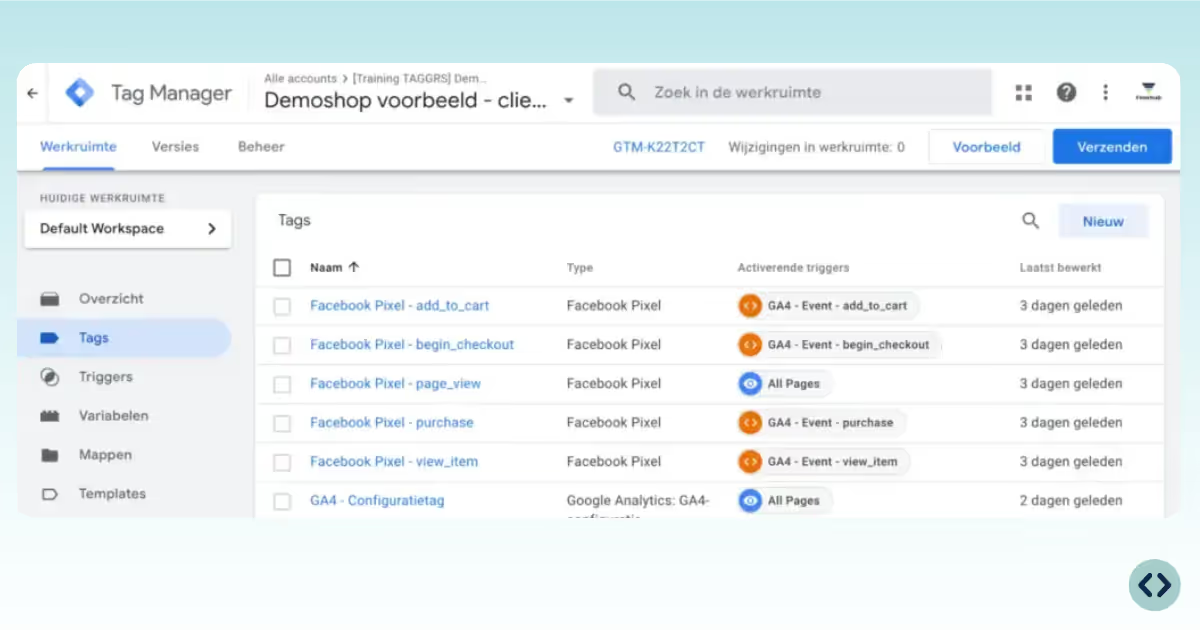
  2. In the left sidebar, click Tags, then select New.
How to create an event in Google Tag Manager and Google Analytics

Configure the GA4 Event Tag

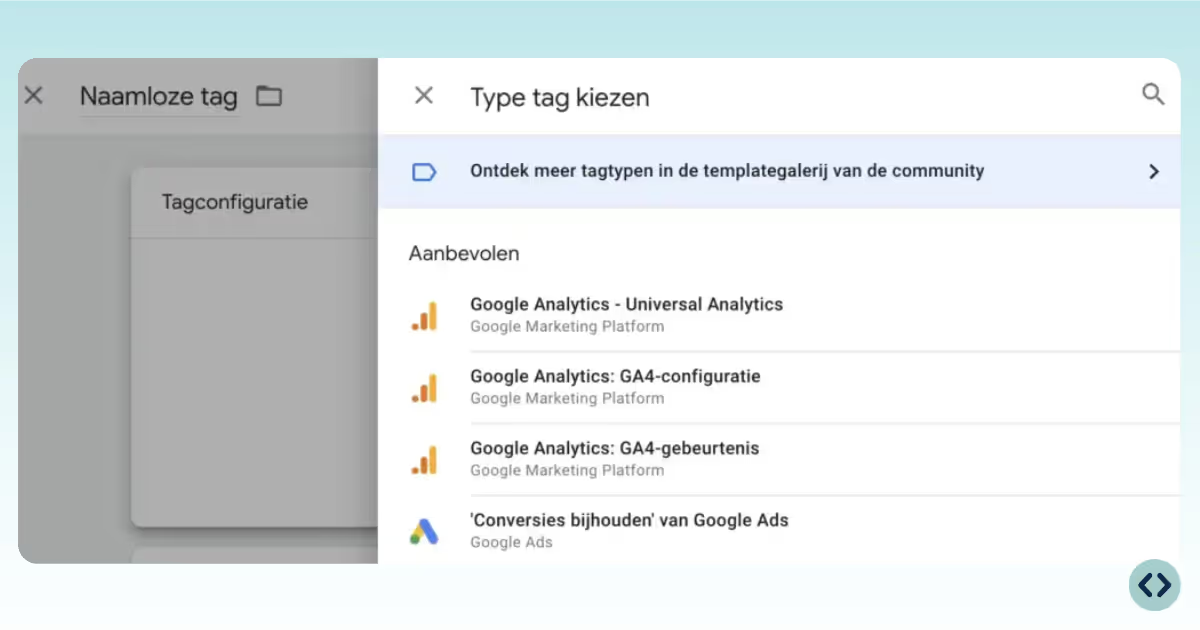
How to configure an GA4 event in Google Tag Manager

1. Click Tag Configuration and select Google Analytics: GA4 Event as the tag type.
2. Under Configuration Tag, select your existing GA4 Configuration tag.
3. Enter the name of the event you want to track (e.g., purchase, signup, button_click). For dynamic event tracking, you can use a variable like {{Event}} to capture multiple event types.

Logo of TAGGRS Server-side Tracking: a light blue circle with two blue angle brackets
To use {{Event}} as a dynamic event name, create a Data Layer Variable in GTM with the variable name event. This captures the event name pushed to the data layer and passes it to GA4 automatically, useful when you're tracking multiple events with a single tag.

4. Event Parameters (optional):

  • Add parameters to provide more context, like value, currency, item_id.
Logo of TAGGRS Server-side Tracking: a light blue circle with two blue angle brackets
dataLayer.push({ ecommerce: null }); // Clear the previous ecommerce object. dataLayer.push({
event: "purchase", ecommerce: {
currency: "{{currency}}",
transaction_id: "{{transaction_id}}",
value: {{value}},
items: [
{
item_id: "{{item_id}}",
item_name: "{{item_name}}",
sku: {{sku}},
price: "{{price}}",
stockstatus: "{{stockstatus}}",
google_business_vertical: "{{google_business_vertical}}",
item_group_id: "{{item_group_id}}",
item_category: "{{item_category}}",
id: "{{id}}",
item_variant: "{{item_variant}}",
quantity: "{{quantity}}"
}
],
user_data: {
first_name: "{{first_name}}",
last_name: "{{last_name}}",
email: "{{email}}",
phone: "{{phone}}",
postal_code: "{{postal_code}}",
address: "{{address}}",

}
});

Dynamic Value
Type
Details
Example value
{{currency}}
String
Currency of the Items
EUR
{{transaction_id}}
String
The unique identifier of a transaction. The transaction_id parameter helps you avoid getting duplicate events for a purchase.
T_134435543
{{value}}
String
The monetary value
150
{{item_id}}
String
The ID of the item
5435324
{{item_name}}
String
Name of the item
Ik beval van het heelal
{{sku}}
String
SKU of the item
IBSHA143
{{price}}
Number
Price of the item
25
{{stockstatus}}
String
Stock status of the item
In Stock
{{google_business_
vertical}}
String
Vertical
retail
{{item_group_id}}
Number
ID of the item group
5342
{{item_category}}
String
Category of the item
Boek
{{id}}
Number
ID
5435324
{{item_variant}}
String
Variant of the item
Hardcover
{{quantity}}
Number
Quantity
4
{{first_name}}
String
First name
Nick
{{last_name}}
String
Last name
De Vries
{{email}}
String
Email of the user
test@taggrs.io
{{phone}}
Number
Phone number of the user
01234523424
{{postal_code}}
String
Postal code of the user
1000 AA
{{address}}
String
Address of the client
Test 1
  • For e-commerce, check Send e-commerce data and select Data Layer to automatically include data layer parameters.
  • For manual control, add each parameter individually: ensure corresponding variables are set up in GTM.

Set the trigger

  1. Click Triggering and select or create a trigger for when the event should fire (e.g., click, form submission, page view).

    For e-commerce, you can use a trigger that listens for all relevant e-commerce events if you use {{Event}} as the event name.
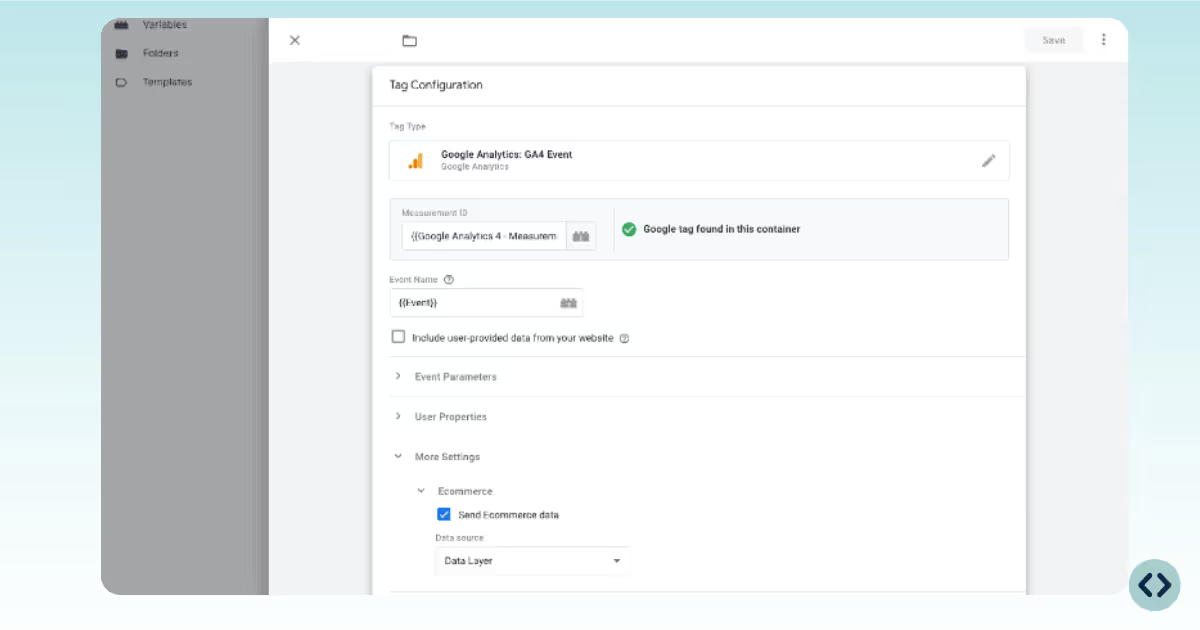
  2. Name your tag descriptively (e.g., “GA4 Event – Purchase”) and click Save.
How to set the tag in Google Tag Manager for GA4

Save and publish

Use GTM’s Preview Mode to verify that your event fires as expected and data appears in GA4’s Realtime or DebugView reports. Double-check this step within the full Google's documentation.
Once confirmed, Submit and Publish your GTM container changes.
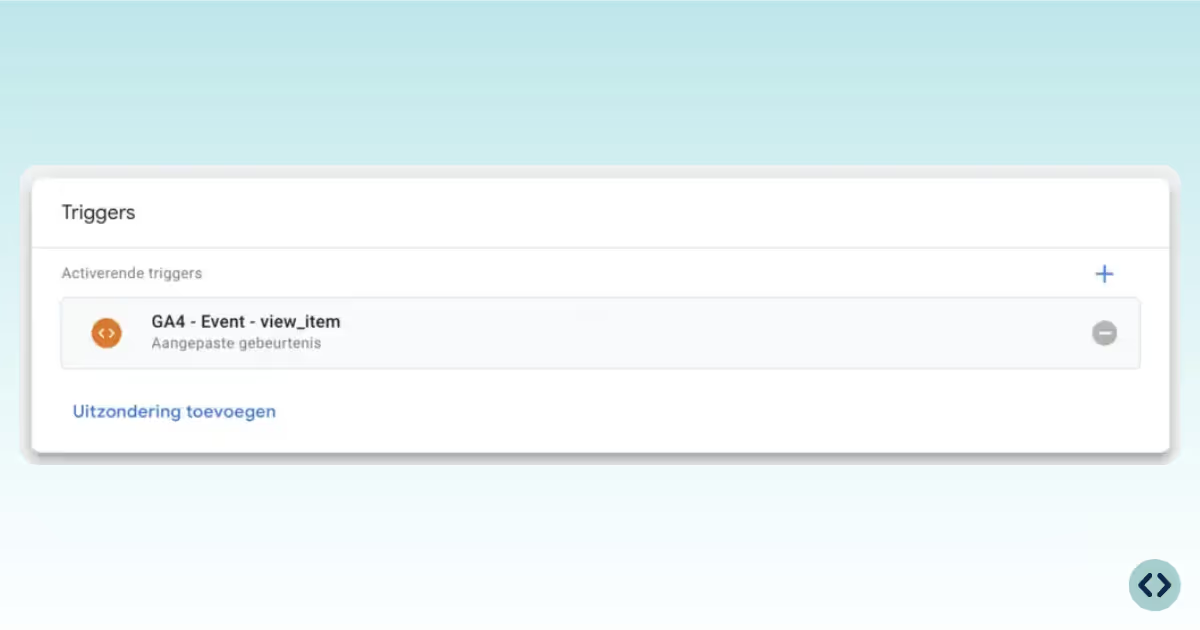
How to set an event trigger in Google Tag Manager for Google Analytics

Best practices

Data layer usage
Using the data layer ensures your event data is structured and reliable. For e-commerce, always send relevant transaction details via the data layer for accurate GA4 reporting.
Event naming
Use Google’s recommended event names for standard actions to unlock GA4’s advanced reporting features.
Parameter management
Only send necessary and privacy-compliant parameters. Avoid sending personally identifiable information (PII).
Server-side forwarding
If using Server-side Tagging, ensure your event tag sends data to your server container endpoint, not directly to GA4. This maximizes data quality and privacy.

How GA4 event tags work in Server-side Tracking

Data flow
Browser → GTM web container → TAGGRS server container → GA4. One sentence each. A simple text diagram would work here.
What changes vs standard setup
The event tag in your web container sends to your server_container_url subdomain instead of directly to www.google-analytics.com. The server container then processes the event, applies any transformations, and forwards it to GA4. This means the hit never passes directly through the browser to Google: ad blockers see only traffic to your own subdomain.
Why this matters for event data quality
Server-side events have higher match rates, more reliable parameter capture (no cookie restrictions), and you can enrich events with server-side data (IP geolocation, user agent parsing) before they reach GA4. No competitor covers this angle because none of them have a server-side product.

Troubleshooting

Event not firing
Check trigger configuration and ensure tag is published
Data missing in GA4
Verify Measurement ID, data layer setup, and server container endpoint
Incorrect parameters
Double-check parameter names and variable mappings in GTM
E-commerce data not tracked
Ensure Send e-commerce data is enabled and data layer is populated

FAQ

Where can I find my GA4 Measurement ID?

You can find your GA4 Measurement ID in GA4 Admin → Data Streams. Select your web stream and the Measurement ID (formatted as G-XXXXXXXXXX) will be displayed at the top.

Do I need a GA4 Configuration tag before creating event tags?

Yes. A GA4 Configuration tag must already be implemented in your web container before creating event tags. If you haven't set one up yet, follow the setup guide linked in the documentation before proceeding.

What is the difference between automatically collected, enhanced measurement, recommended, and custom events?

  • Automatically collected events fire by default with no setup — things like session_start, first_visit, and user_engagement.
  • Enhanced measurement events are also automatic but require the Enhanced Measurement toggle to be enabled in your GA4 data stream. These include page_view, scroll, video_start, and file_download.
  • Recommended events are pre-defined by Google for specific actions like purchase or add_to_cart. You implement these yourself, but using Google's exact naming unlocks advanced GA4 reporting features.
  • Custom events are fully defined by you for anything not covered above, such as cta_click, newsletter_subscribe, or chatbot_open.

Which events should I use for e-commerce tracking?

Use Google's recommended e-commerce events: view_item_list, view_item, select_item, add_to_cart, begin_checkout, add_shipping_info, add_payment_info, and purchase. These unlock GA4's built-in e-commerce reports and funnel analysis.

Can I use custom event names, or should I stick to Google's recommended names?

You can use custom names, but it's best to use Google's recommended event names for standard actions whenever possible. Recommended event names unlock GA4's advanced reporting features and are compatible with future GA4 updates. Use custom names only for interactions that have no recommended equivalent.

What is a data layer and why should I use it?

The data layer is a JavaScript object that temporarily stores information on your website and passes it to GTM. Using it ensures your event data is structured, reliable, and consistent. It also decouples your tracking logic from your website code, making updates easier to manage.

How do I push e-commerce data to the data layer?

Use dataLayer.push() with your event name and an ecommerce object containing the relevant parameters. For example, a purchase event would include transaction_id, value, currency, and an items array with product-level details like item_id, item_name, price, and quantity.

Should I clear the ecommerce object before pushing a new event?

Yes, always push { ecommerce: null } before pushing a new ecommerce event. This clears any previously stored ecommerce data from the data layer and prevents data from one event bleeding into the next, which can cause inaccurate reporting in GA4.

How do I set up a server container endpoint in GTM?

In your GA4 Config tag, point the server container URL to your TAGGRS subdomain instead of sending directly to Google Analytics. Your server container then handles the forwarding to GA4. Full setup instructions are covered in the TAGGRS server-side setup guide.

Will Server-side Tracking help bypass ad blockers?

Yes. Since the event data is sent to your own subdomain rather than directly to Google's servers, ad blockers don't recognize it as analytics traffic. This results in higher event match rates and more complete data collection.

How do I verify my event is firing correctly before publishing?

Use GTM's Preview Mode to test your tag. Once in preview, trigger the relevant action on your website and confirm the event fires in the GTM debug panel. Then check GA4's Realtime or DebugView reports to confirm the data is arriving correctly. Only publish your container after this is verified.

Why is my event not appearing in GA4 Realtime reports?

Check the following: your tag trigger is configured correctly, your GTM container has been published (not just saved), your GA4 Measurement ID is correct, and - if using server-side tracking - your server container endpoint is properly configured.

Why are my e-commerce parameters missing in GA4?

Make sure "Send e-commerce data" is enabled in your GA4 Event tag configuration and that your data layer is actually being populated with the ecommerce object before the event fires. Also verify that your variable mappings in GTM match the exact key names in your data layer.

My event fires in GTM Preview but data is missing in GA4 - what should I check?

This usually points to one of three things: the Measurement ID is incorrect or mismatched, the data layer variables aren't resolving to the expected values, or - in a server-side setup - the server container endpoint isn't receiving or forwarding the event correctly. Check each step in the data flow: Browser → GTM web container → TAGGRS server container → GA4.

Useful resources

Google Analytics 4 logo in white
Read the full manual on GA4 Server-side Tracking
icon of a white upward arrow
icon of a white thunder used by TAGGRS to visually introduce Server-side Tracking
Start for free with Server-side Tracking
icon of a white upward arrow
White silhouette of a person used as icon for the support call to action
Get expert support
icon of a white upward arrow
Previous
GA4 setup in GTM
Next
Create GA4 tags
DOCUMENTATION V1.5
Copyright © 2026 TAGGRS. All right reserved.
TABLE OF CONTENTS
Types of eventsPrerequisitesConfigurationBest practicesHow GA4 event tags work in SSTTroubleshootingFAQUseful resources