Logo of TAGGRS, written in blue and with a small favicon
HomeServer-side TrackingMeta CAPI Gateway
EnglishDeutsch
SERVER-SIDE TRACKING
Get started
Get started with TAGGRSSet up Google Tag ManagerConfigure the subdomainAdd the GTM Data LayerConfigure GTM transformationsTest the setupDebuggingAnalytics dashboard
Migrate from Google CloudMigrate from hosting
Shortcuts
GTM Copy PasteReady-made templates
GA4 Server-side Tracking
Setup in GTMCreate GA4 Event TagsGA4 tag setup in server containerE-commerce events in GTM
Google Ads Server-side Tracking
Install Conversion LinkerSet up Conversion TrackingConfigure Enhanced ConversionsDeploy Remarketing TagsInstall Offline Conversions
Facebook Server-side Tracking
Set Meta PixelImprove your EMQ ScoreInstall Meta CAPIMeta Events Deduplication
LinkedIn Server-side Tracking
Install LinkedIn Insight TagSet up LinkedIn CAPILinkedIn Events Deduplication
TikTok Server-side Tracking
Set up TikTok PixelInstall TikTok Events APITikTok Events Deduplication
Pinterest Server-side Tracking
Set up Pinterest TagConfigure Pinterest Conversions APIPinterest Events Deduplication
Snapchat Server-side Tracking
Set up Snap PixelSnapchat Conversions APISnapchat Events Deduplication
TAGGRS Tracking Tags and Tools
Tracking TagsGoogle Service Account integrationProfit TrackingData Enricher ToolWebhooks TesterEnhanced Tracking ScriptMulti Domain ToolClick ID RecoveryConsent Approval Graph
Configurations
Billy Grace Server-side TrackingLeadPages Server-side TrackingPiwik PRO Server-side TrackingCDN Server-side TrackingShopify Server-side TrackingActiveCampaign Server-side TrackingKlaviyo Server-side TrackingSpectacle Server-side TrackingEulerian Server-side Tracking
Server-side Tracking for e-commerce
Shopify Data LayerShopware Data LayerMagento Data LayerWooCommerce Data LayerPrestashop Data LayerLightspeed Data Layer
Consent Management server-side
Activate Consent ModeConfigure AxeptioConfigure Cookie Confirm
META CAPI GATEWAY
ACCOUNT SETTINGS
User roles and accessSSO

Install GA4 tags in the server container

Once you've created your GA4 tags (see previous guide), you can configure them in the server container.
So, now: this guide provides clear, step-by-step instructions to create GA4 event tags in Google Tag Manager (GTM), ensuring your event data is structured, reliable, and routed through your TAGGRS server container: not sent directly from the browser to Google Analytics 4.

Prerequisites

  • A GTM account and web container set up for your website
  • A GA4 configuration tag already implemented in your web container
  • Your GA4 Measurement ID (found in GA4 Admin → Data Streams)
  • The GTM container code installed on your website
  • A TAGGRS server container running with your subdomain configured
Logo of TAGGRS Server-side Tracking: a light blue circle with two blue angle brackets
Wondering where to find the GA4 configuration tag?‍
The GA4 configuration tag lives in your web container. In your web container, go to Tags and look for a tag of type Google Tag. If it is missing, follow our GA4 setup in GTM guide to create it before proceeding.

Set up the GA4 client in the server container

The GA4 client is responsible for intercepting incoming GA4 HTTP requests and parsing them into event data objects for further processing.

  1. Open your GTM server container.
  2. Go to Clients in the left menu.
  3. If the GA4 client does not exist, click New and select Google Analytics: GA4 as the client type.
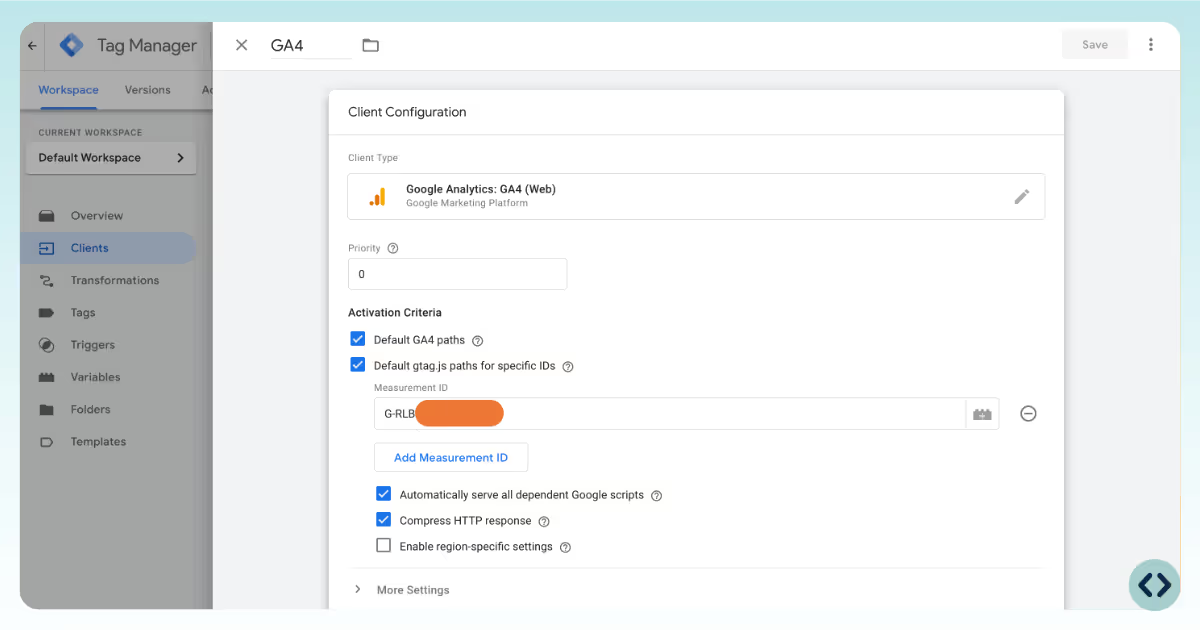
  4. Configure the client settings:
    Default GA4 paths
    Keep enabled to capture standard GA4 event requests, such as /collect or /g/collect.
    Default gtag.js paths for specific IDs
    Enable if you want your server container to serve the GA4 JavaScript library through your domain. List your Measurement IDs as needed.
    Automatically serve all dependent Google scripts
    Recommended to keep enabled for seamless script loading.
    Compress HTTP response
    Enable for optimized network usage.
    Enable region-specific settings
    Optional, for advanced consent and privacy controls.
    Cookies and Client Identification
    Use "JavaScript Managed" by default, or configure server-managed cookies if you have set up a custom domain.
  5. Save the client configuration.

Create a GA4 tag in the server container

The GA4 tag will receive event data from the GA4 client and forward it to your GA4 property.
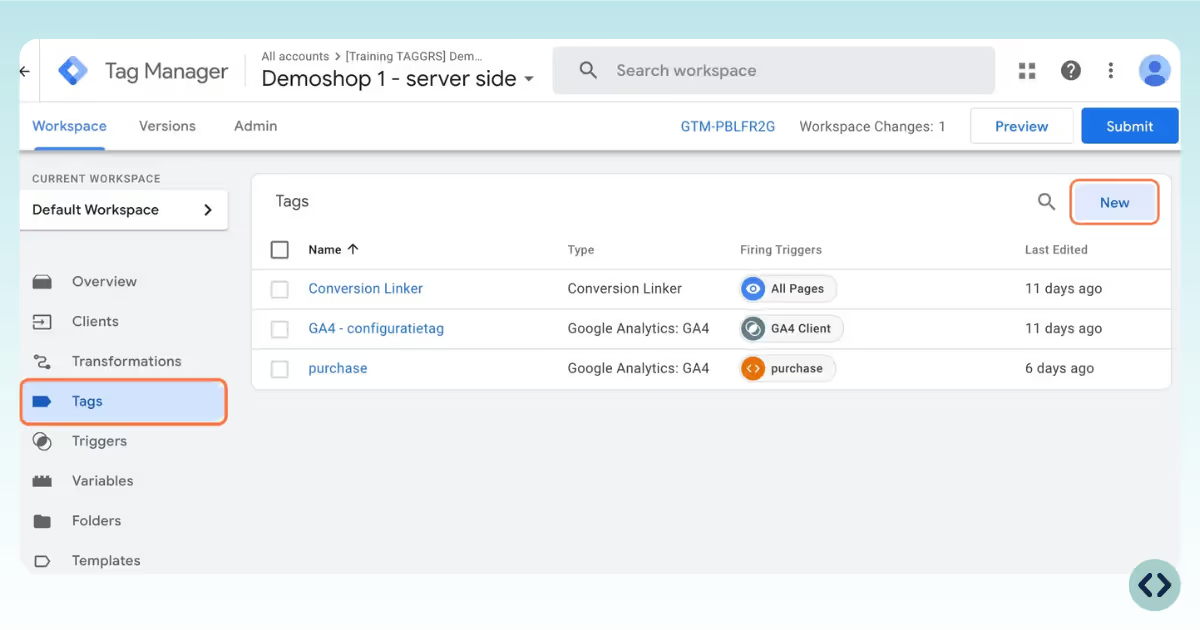
  1. In your GTM server container, go to Tags and click New.
    Create a new tag in Google Tag Manager
  2. Click Tag Configuration and select Google Analytics: GA4.
    Choose the tag type in Google Tag Manager to set up the tag and the triggers for GA4 server-side tracking
  3. Leave fields at their default values unless you need to customize event forwarding (the tag inherits Measurement ID and parameters from the client).
  4. Optionally, add custom mappings or parameter modifications as needed for your analytics strategy.

Set the trigger for the GA4 Tag

1. In the tag settings, click Triggers.
2. Select New.
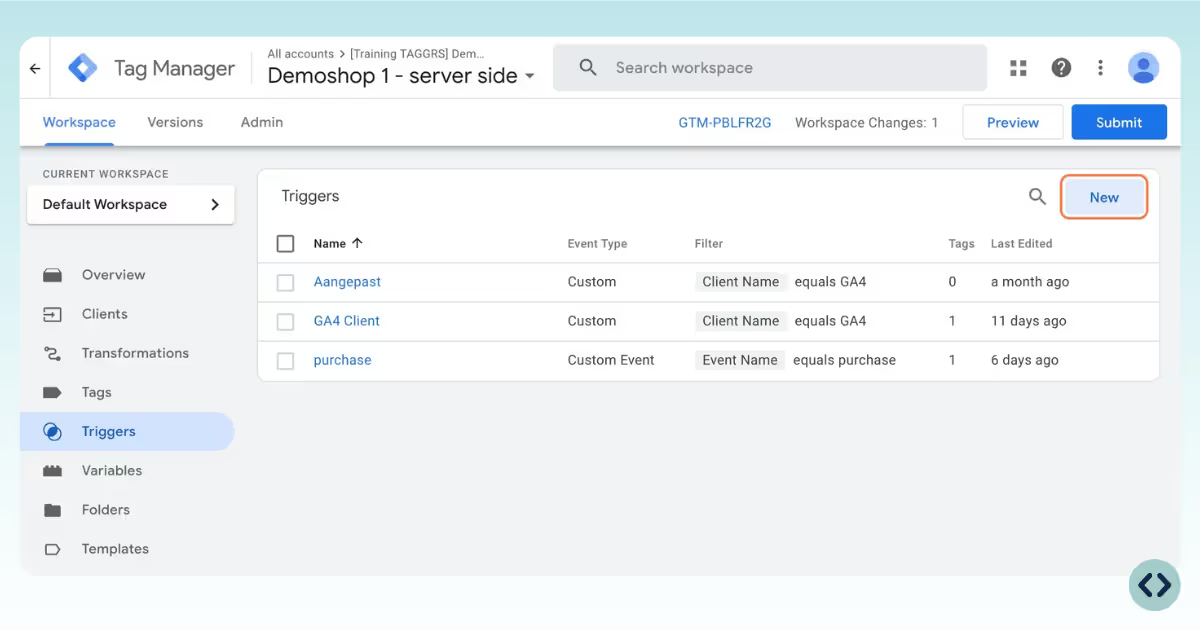
Set a new trigger in Google Tag Manager (server container) for your Google Analytics 4 server-side tracking

3. Click on the pencil at Trigger Configuration and choose Custom as the trigger type.
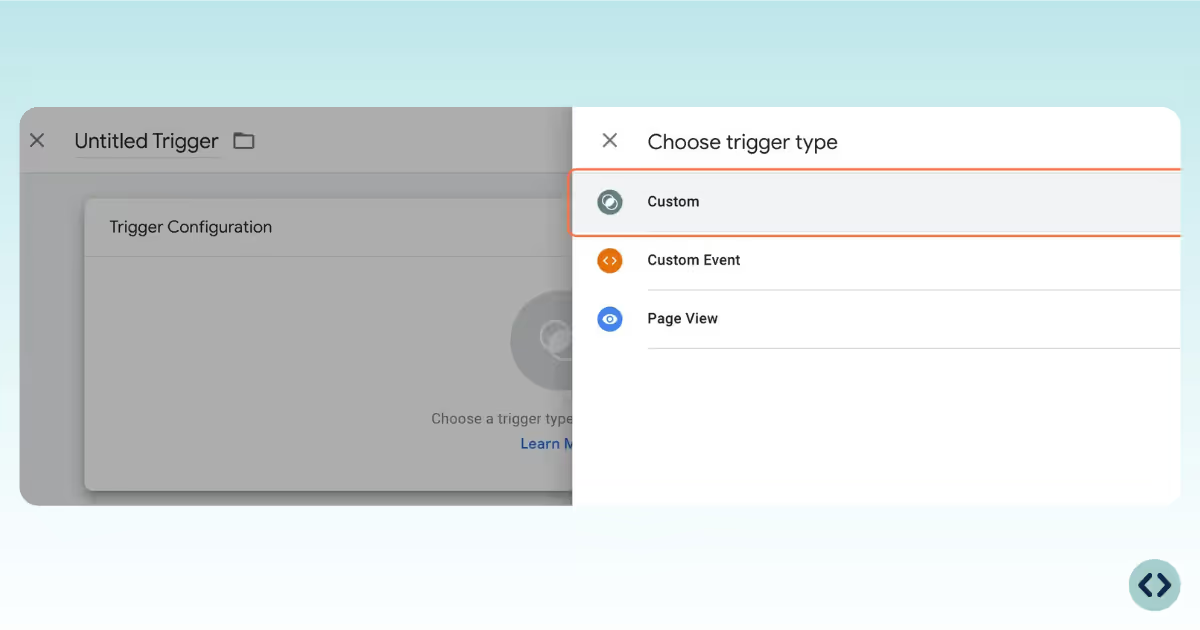
How to set up the trigger in the server container (Google Tag Manager) for Google Analytics 4

4. Select Some events under This Triggers fires on. Then enter: Client name – equals – GA4.
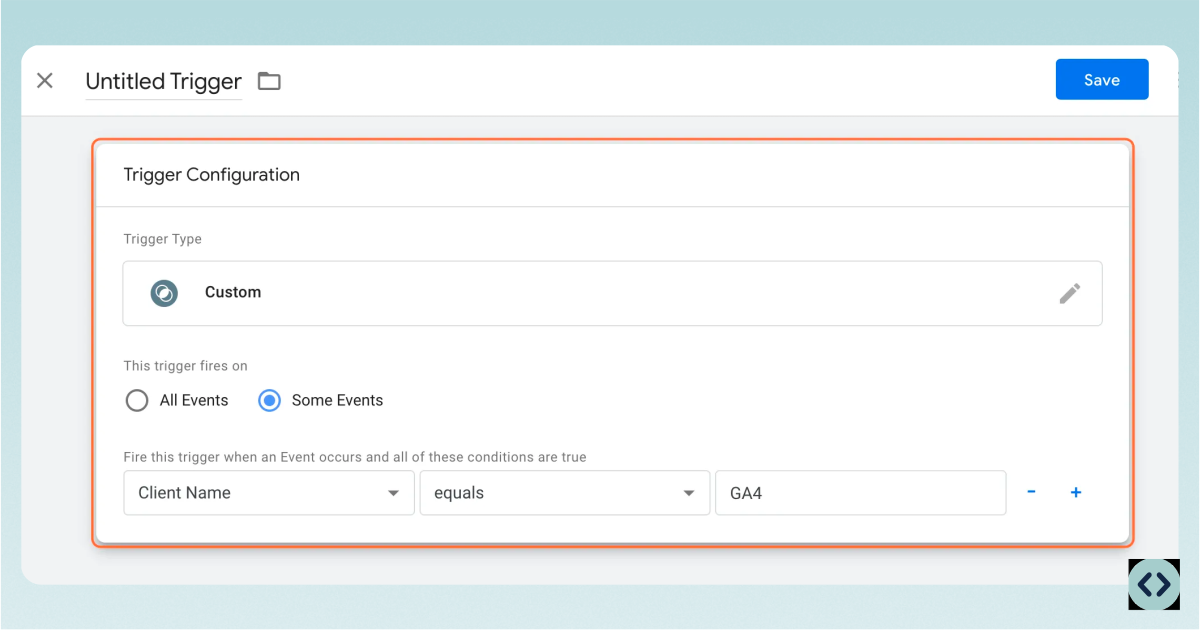
To set up the trigger configuration, select “Some events” under “This Triggers fires on". Then enter: ‘Client name – equals – GA4’. Name the trigger and click Save.
Logo of TAGGRS Server-side Tracking: a light blue circle with two blue angle brackets
This ensures the tag only fires for events parsed by the GA4 client.

5. Name the trigger and click Save.
Test your server-side GA4 setup

  1. A client allows for processing incoming requests sent from a Google Analytics 4 client. This is often automatically added to the server container, but not always. To check if you have a GA4 client, go to Clients in the server container and this client should be listed here. No GA4 client yet? Create one. You can keep the above settings. Make sure to add your own Measurement ID.  
    After the setup of GA4 tags and triggers in Google Tag Manager, verify if the client is set up
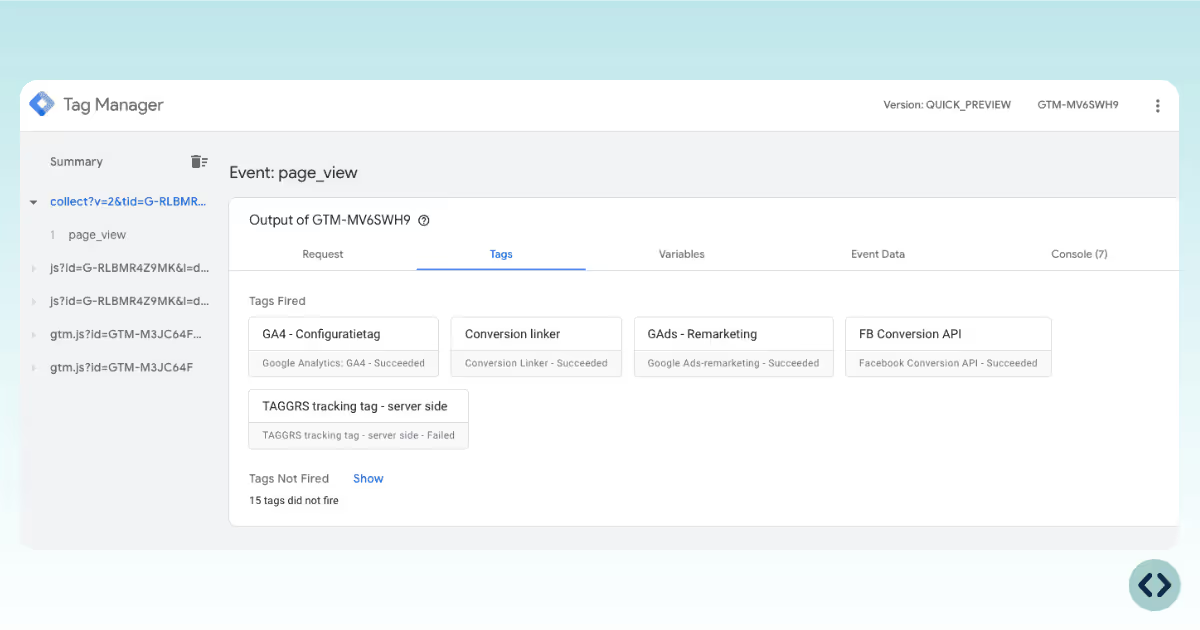
  2. Use the Preview mode in your GTM server container to simulate incoming events.
  3. In your browser, trigger events on your website (e.g., page views, purchases).
  4. In the server container preview, verify that:
    • The GA4 client claims the incoming requests.
    • The GA4 tag fires as expected.
    • Events are dispatched to your GA4 property (check GA4 DebugView or Realtime reports).
    Check if your GA4 tag fires the events correctly in Google Tag Manager's Preview mode
  5. For additional validation, append /healthy to your server container URL in a browser to check server health (should return ok).

Best practices

Parallel measurement
During migration, use dual-tagging to compare client-side and server-side data before fully switching to server-side only.
Hybrid collection
You can choose to send some events directly to GA4 and others through the server container for flexibility.
Custom domains
Proxy the GA4 script and event requests through your own domain for improved first-party data and tracking resilience.
Privacy controls
Leverage region-specific settings and custom parameter filtering for privacy compliance
Data layer usage
Using the data layer ensures your event data is structured and reliable. For e-commerce, always send transaction details via the data layer for accurate GA4 reporting.
Event naming
Use Google's recommended event names for standard actions to unlock GA4's advanced reporting features. Avoid inventing custom names for interactions that already have a recommended equivalent.
Parameter management
Only send necessary and privacy-compliant parameters. Never send personally identifiable information (PII) such as email addresses or full names.
Server-side forwarding
Ensure your event tag sends data to your TAGGRS server container endpoint, not directly to GA4. This maximises data quality, privacy, and resilience against ad blockers.

Troubleshooting

Event not firing
Check trigger configuration and confirm the tag is published. Use Preview Mode to see whether the trigger condition is being met.
Data missing in GA4
Verify your Measurement ID, data layer setup, and that your server_container_url points to your TAGGRS subdomain.
Incorrect parameters
Double-check parameter names and variable mappings in GTM. Parameter names are case-sensitive.
E-commerce data not tracked
Ensure Send e-commerce data is enabled and the data layer is populated with the correct structure before the tag fires.
{{Event}} not capturing event name
Confirm you have created a Data Layer Variable in GTM with the variable name event (lowercase). Check that your data layer pushes include an event key.

FAQ

What is the difference between a GA4 event tag and a GA4 configuration tag?

The GA4 configuration tag initializes Google Analytics 4 on the page and establishes the connection between your website and your GA4 property (optionally through a server-side GTM endpoint). It typically fires once per page load.

A GA4 event tag sends specific interaction data (e.g. clicks, form submissions, or purchases) to GA4. These tags fire only when the defined interaction occurs.

You usually need both: the configuration tag as the foundation, and one or more event tags to send specific interaction data.

Can I use one event tag for all events?

Yes, many setups use a single GA4 event tag with the dynamic {{Event}} variable as the event name, triggered by relevant data layer pushes. This approach is efficient and scalable, but it relies on a consistent and well-structured data layer.

For events that require unique parameters or custom logic (e.g. purchase events) dedicated event tags often provide better control and easier debugging which most of the times is the preferred method.

Useful resources

Google Analytics 4 logo in white
Where to find your Google Tag
icon of a white upward arrow
Google Analytics 4 logo in white
Read the full manual on GA4 Server-side Tracking
icon of a white upward arrow
White silhouette of a person used as icon for the support call to action
Get expert support
icon of a white upward arrow
Previous
Create GA4 Event Tags
Next
E-commerce events in GTM
DOCUMENTATION V1.5
Copyright © 2026 TAGGRS. All right reserved.
TABLE OF CONTENTS
PrerequisitesSet up the GA4 clientCreate a GA4 tag in the server containerSet the triggerTest your setupBest practicesTroubleshootingFAQUseful resources