Unassigned traffic in GA4 and 6 best practices to fix it
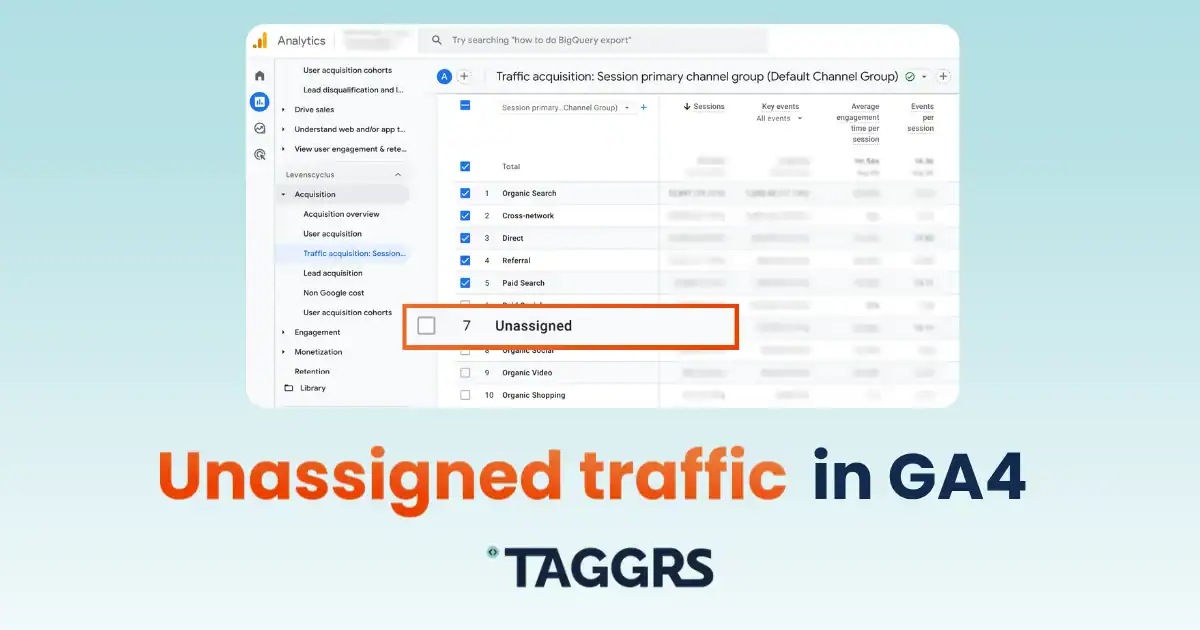

Traffic labeled as Unassigned can be confusing. But understanding what it means and how to fix it is crucial for getting reliable data to trust on your website's visitors. In this blog post, you'll learn all the ins and outs of unassigned traffic in Google Analytics 4: what is it, what causes it, why it matters, and 6 practical solutions to fix it.
First off, how does GA4 classify traffic?
GA4 organizes traffic using Default Channel Grouping, which categorizes your website visits into meaningful categories based on attribution rules. The rules are based on UTM parameters such as source, medium, campaign, document.referrer, and gclid. This way, you can quickly analyze performance by channel type without manual tagging. Google currently defines 18 fixed default channel groups.
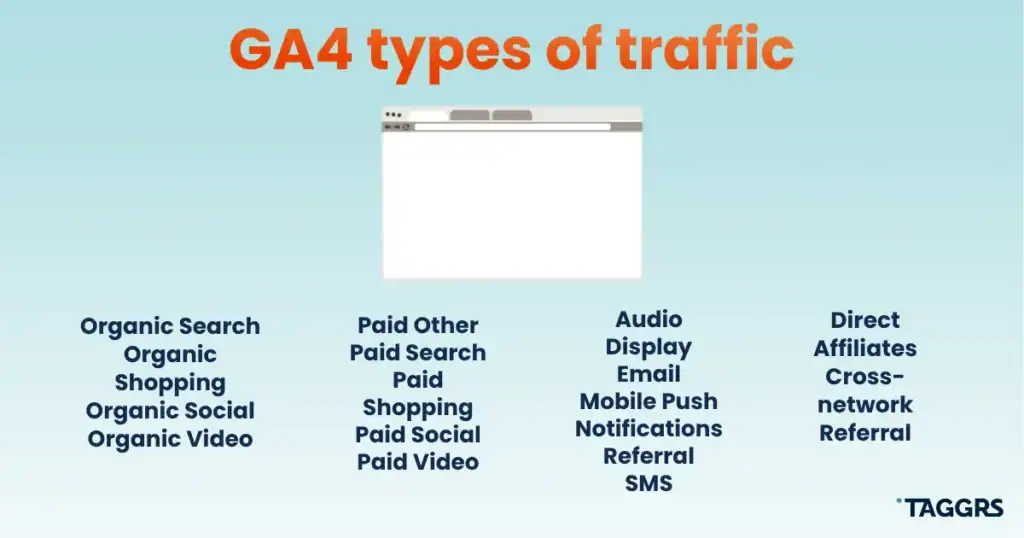
There are channel rules that govern how Google Analytics 4 assigns traffic to these groups based on common patterns in UTM parameters and referral data. Here is the breakdown of the type of traffic in GA4 and their parameters:
- Organic Search: Website/app visits coming from major search engine sites (including AI overviews) where
utm_medium=organicor no UTM parameters but the referrer is a recognized search engine. E.g. a visitor arriving from Bing via non-ad links. - Paid Search: Traffic driven by ads on search engine sites using parameters like
utm_medium=cpcorutm_medium=paidsearch. E.g. a campaign tagged withutm_source=googleandutm_medium=cpcwill appear in Paid Search. - Organic social: Traffic from unpaid social posts, often with
utm_medium=socialor no UTM but with social network referrer domains like Facebook or Twitter. - Paid Social: When visitors come from social media platforms with paid campaigns where utm_medium is set to cpc, ppc, or paid_social. E.g. Facebook ads with
utm_source=facebookandutm_medium=cpcfall into this channel. - Email: Visitors who click links in email campaigns tagged with
utm_medium=emailorutm_sourceset as email|e-mail|e_mail|e mail. - Referral: Users arriving via non-social, non-paid links on other websites, usually with the referrer set but no UTM or medium indicating referral.
Direct: Visitors arriving by typing your URL directly, bookmarking, or with missing/empty referral and UTM data.
Each channel group leverages distinct patterns in the utm_medium, utm_source, and sometimes utm_campaign parameters combined with known referrer domains or ad network data. If these patterns aren’t met, GA4 may label the traffic as Unassigned.
What is unassigned traffic in GA4, and what causes it?
Unassigned traffic in Google Analytics 4 consists of sessions or events that GA4 can’t group under any known Default Channel Group. It represents a blind spot in your data where GA4 loses track of user journeys. This typically happens for several reasons:
- Non-standard, incorrect, or missing UTM parameters, such as typos or empty medium or source values
- Traffic sources that don’t fit Google’s predefined channel rules, including custom or unusual sources like internal tools, dark social, or new marketing channels
- Redirects or tracking interruptions that break the session attribution chain
- Incomplete or lost attribution data caused by redirects stripping parameters, privacy regulations limiting tracking (e.g. GDPR consent declines), or technical tracking issues
- Bot or spam traffic imitating real visits but lacking valid attribution data
Because these visits fall into the Unassigned category, channel performance reports can get skewed, making it harder to understand which marketing campaigns drive the most traffic and conversions, to compare organic vs. paid channels, to allocate budgets with informed decisions, and eventually optimize your tracking.
That’s why addressing the root causes of unassigned traffic is essential for restoring trust in your data and enabling smarter, data-driven marketing decisions.
How to fix unassigned traffic in GA4: 6 best practices
1. Standardize UTMs across campaigns
Audit your marketing URLs and ensure every campaign link includes properly formatted UTM parameters, especially:
- Always explicit
utm_medium,utm_source, andutm_campaign - Use naming conventions, e.g. "email" and not sometimes “e-mail” or “mail”. Once again: consistency is key!
- Audit them regularly
2. Set up custom channel grouping
GA4 allows custom channel group rules beyond Google’s defaults. This is great if you have unique campaigns or sources not covered by defaults (e.g. “influencer” or “partnership”). Create custom channel definitions based on source, medium, or other dimensions that match your business needs. For example, you can create a custom channel group for traffic coming from AI chatbots.
Example: How to create a custom channel group for AI chatbots
AI chatbots have become more and more important traffic sources, but the traffic they generate often ends up being classified as Unassigned in GA4, making it difficult to track and analyze effectively.
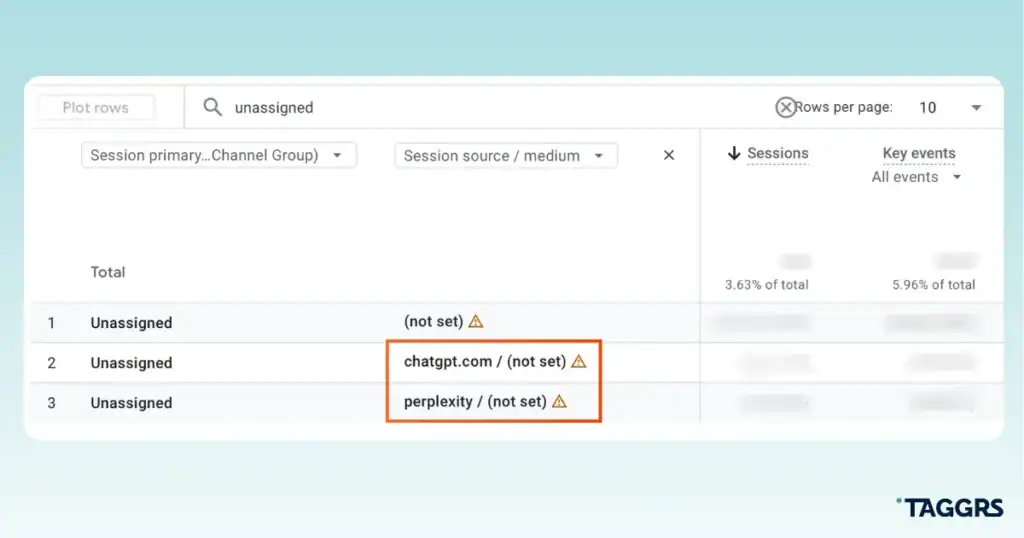
So, here is how to set a custom channel for AI chatbots within GA4:
- Log into GA4.
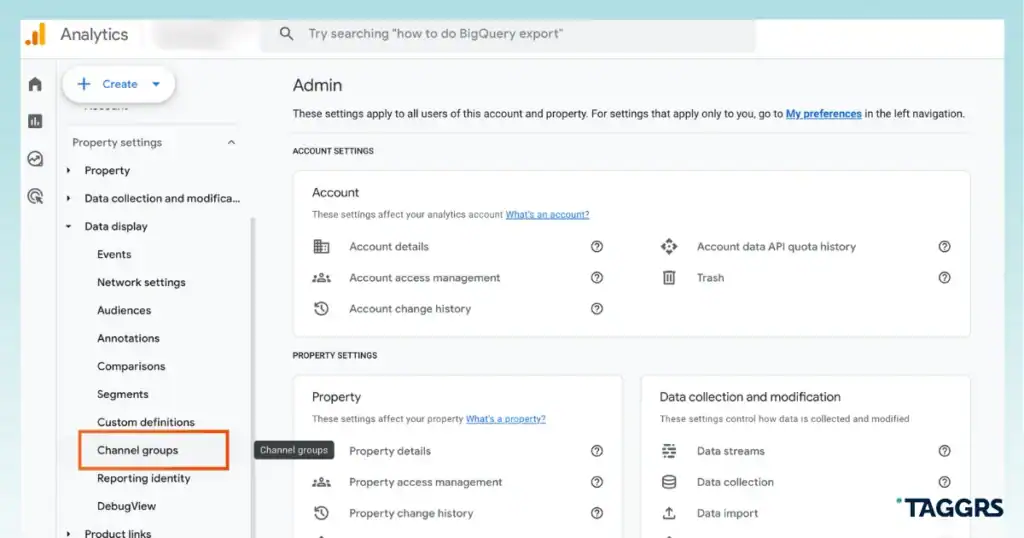
- Select Admin → Property settings → Data Display → Channel Groups.
3. Click on Create new channel group.
4. Within the new channel group, click Add new channel and name it clearly, e.g. “AI Chatbots.”
5. Choose the Source dimension and set it to match the regex. Use a comprehensive regex pattern that includes popular AI chatbot domains such as:
(?i)(chatgpt.com|chat.openai.com|claude.ai|gemini.google.com|bard.google.com|perplexity.ai|copilot.microsoft.com|bing.com|chat.mistral.ai|copy.ai|meta.ai|poe.com|character.ai|you.com|huggingface.co|replika.ai|chat.deepseek.com|chat.chaton.ai|grok.com|openai|chatgpt|claude|gemini|bard|perplexity|copilot|mistral|poe|replika|chaton|grok|huggingface|character.ai|meta.ai|copy.ai)
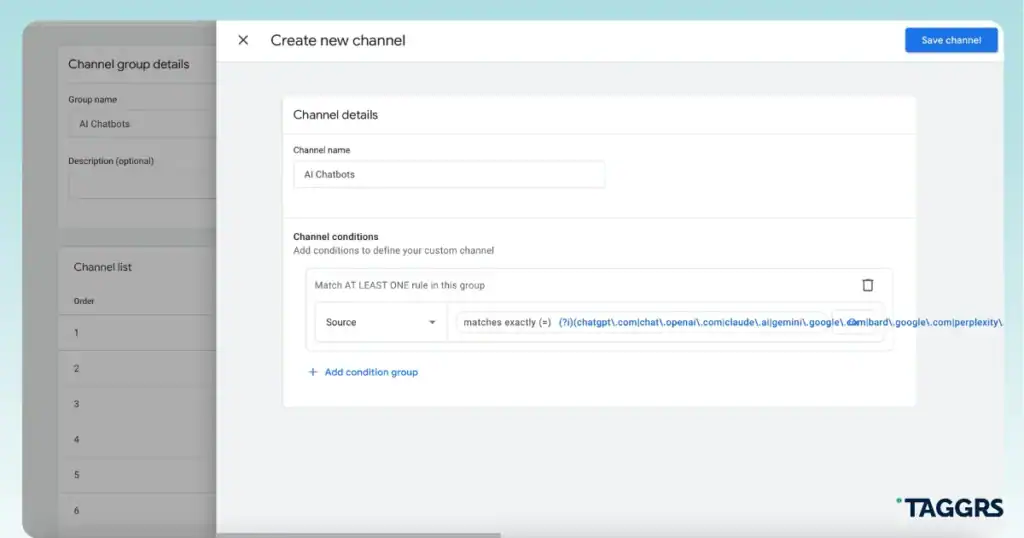
6. After reviewing your configuration, save the channel and the entire channel group.
3. Fix redirect and tracking interruptions
Check your site and marketing funnel for redirects that strip UTMs or break sessions. Implement best practices like:
- Use canonical URLs
- Keep tracking parameters on redirect chains
- Avoid mixing server-side and client-side tagging without coordination
4. Improve cross-domain and cross-network tracking
If you manage multiple related domains or apps, set up cross-domain measurement in GA4. For server-side setups, the TAGGRS Multi Domain Tool helps maintain session continuity across domains.
5. Use Server-Side Tracking when possible
Server-side Tracking improves data control and reduces lost attribution due to browser privacy restrictions or ad blockers, which commonly cause unassigned or not set traffic sources. With TAGGRS, you can always start for free. Learn more about Google Analytics 4 Server-side Tracking.
You have implemented Server-side Tracking but you’re experiencing a spike in Unassigned? There is a dedicated Support article for you.
6. Monitor and filter bot traffic
Google Analytics 4 automatically excludes traffic from known bots and spiders based on the industry-standard IAB International Spiders & Bots list. This means that hits recognized as coming from well-known crawlers (e.g. Googlebot or Bingbot) are filtered out of your reports by default. But sophisticated bots or spam traffic mimicking real users, using fake referrals, or running headless browsers can still slip through because GA4 only filters what it identifies as known bots.
To improve bot filtering beyond GA4’s automatic blocking, you can:
- Use GA4’s data filters to exclude internal or suspicious traffic by defining IP ranges under Admin → Data Streams → Web → Configure tag settings → Define internal traffic, then apply Data Filters to exclude it
- Create segments or explorations within GA4 to isolate and exclude suspicious traffic based on behavior, e.g. very short session durations or suspicious referral sources
- Implement Server-side Tracking to detect and block bots before data reaches GA4, providing an additional layer of protection. We’ve created step-by-step guides to implement Google Analytics 4 Server-side Tracking with TAGGRS: it all starts by setting up GA4 in Google Tag Manager.
Checklist: keep your GA4 traffic data clean in 6 steps
Unassigned traffic in GA4 can hide valuable insights about your marketing efforts. By understanding Google’s default channel grouping rules and the common causes behind unassigned traffic, you can:
- Audit and standardize your UTM parameters across campaigns
- Create custom channel groupings tailored to your business
- Fix tracking interruptions and redirects
- Improve cross-domain measurement with TAGGRS
- Implement Server-side Tracking where feasible
- Monitor and filter bot traffic
Taking these steps will lead to clearer, more accurate attribution and empower smarter marketing decisions.